
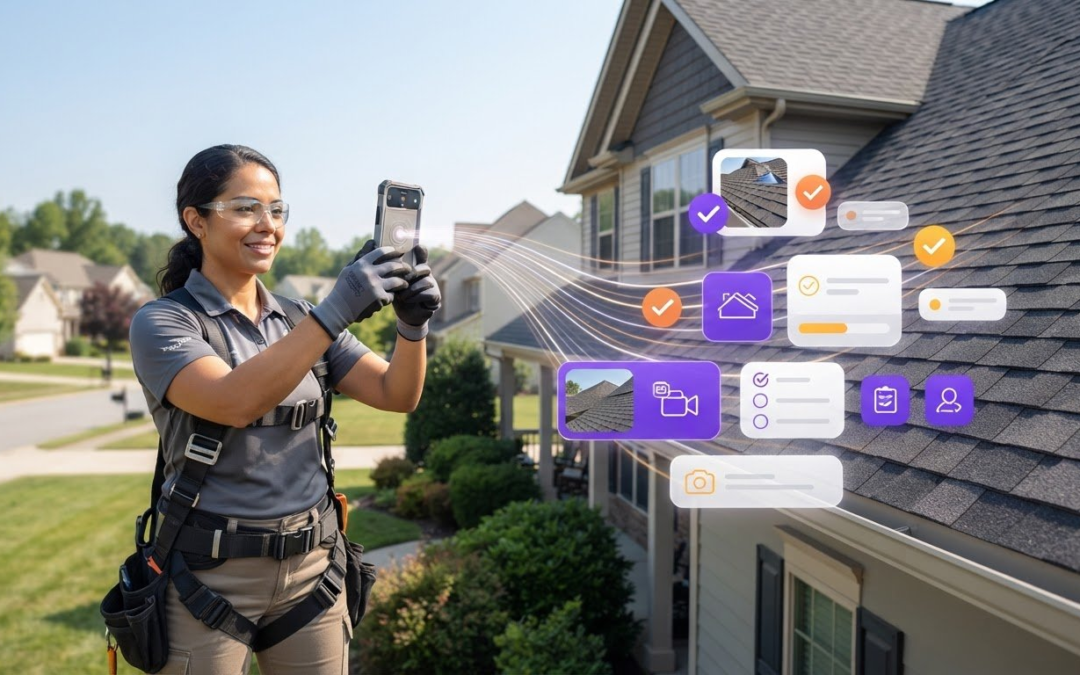
What if your inspection photos stayed organized from capture to report without creating another task at the end of the day? An automated photo labeling app can help, but it needs to preserve the context that makes each image useful: the room, component, condition, or task it documents.
Manual sorting slows fieldwork and report preparation. A photo without a clear label can be difficult to match to the right inspection, and a general photo app may not support templates or team handoffs. The right tool should make it practical to add context onsite, find images later, and move documentation into a consistent reporting workflow.
This guide explains how automated photo labeling works and what to look for in a field-ready app. You’ll learn how to assess voice-to-text labels, custom inspection templates, photo organization, and report generation, then compare those features with your team’s needs. The goal is less time sorting photos, clearer documentation, and a smoother handoff from the field to the people who need the report.
Key Takeaways
- Understand how field photo labeling differs from personal photo albums and computer-vision annotation.
- Follow a practical capture-to-report sequence, and know where human review helps keep labels accurate.
- Use an automated photo labeling app comparison checklist to prioritize essential workflow features over extras.
- Build repeatable naming conventions and template categories so images are easier to retrieve later.
- See how PHOTO iD’s features can support common field documentation needs.
What Is an Automated Photo Labeling App for Field Inspections?
An automated photo labeling app helps field professionals capture images, add identifying details, and organize photos for inspection documentation. Rather than leaving images in a camera roll with unclear file names, the app connects them with context such as the property, room, component, condition, or task. Depending on the tool, templates or voice-to-text can make labeling faster. People still need to review details that require judgment.
A field photo labeling app turns inspection images into organized evidence by linking each photo to the location, item, condition, or task it documents. That context matters after you leave the property. A close-up may clearly show a stain, but without a room or surface label, a teammate may not know where it was found or how it relates to the report.
Field photo labeling is different from using a personal photo album, which is generally designed to group pictures by date, people, or broad subject. It is also distinct from computer-vision annotation. The word “automated” does not necessarily mean an app can recognize defects or identify objects in an image. Check what the tool actually automates: applying labels, organizing files, or moving images into a report workflow.
How Is Field Photo Labeling Different from Image Annotation?
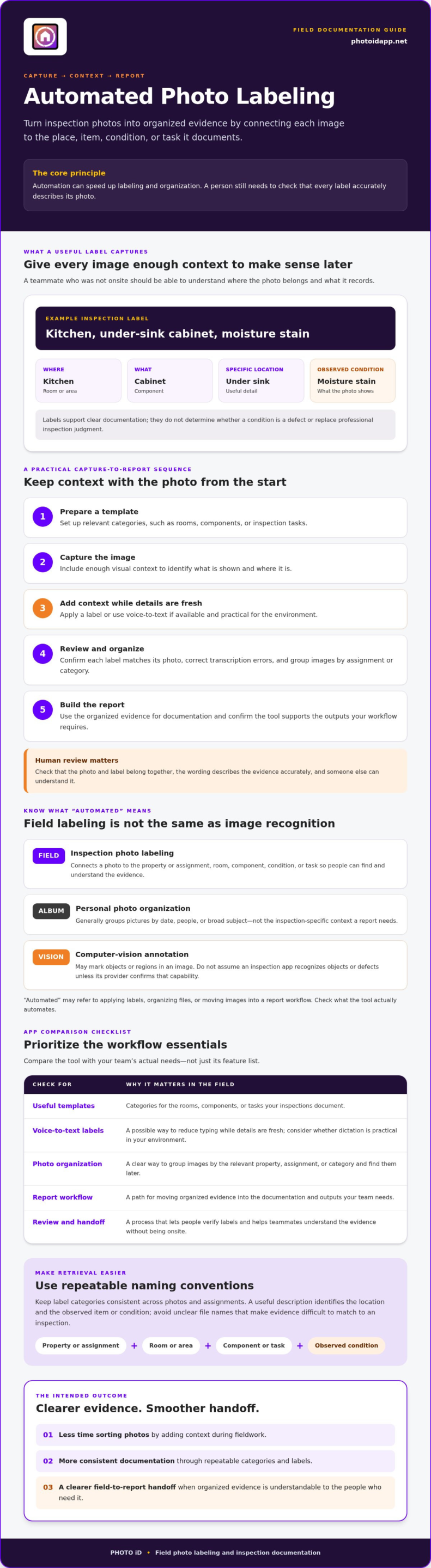
Image annotation often marks objects or regions in pictures to create labeled datasets for computer-vision projects. Inspection labeling, by contrast, records property conditions for people who need clear documentation. For example, an inspector might label a photo “Kitchen, under-sink cabinet, moisture stain.” An object-detection tag might instead mark a cabinet in the image as an object. As Automatic image annotation explains, image annotation can involve assigning metadata to images. Don’t assume an inspection app uses that technology unless its provider confirms it.
What Makes a Photo Label Useful in an Inspection Report?
A useful label answers practical questions: Which property or assignment is this? What room or area? Which component? What condition is being documented? Consistent categories make it easier to retrieve evidence, compare related photos, and understand why an image belongs in a report. Labels support clear documentation, but they do not determine whether a condition is a defect or replace professional inspection judgment. Record what you observe, then check that the label describes it accurately.
How Automated Photo Labeling Works from Capture to Organized Evidence
A reliable workflow starts before the first photo and ends when the images have been checked and are ready for documentation. An automated photo labeling app may speed up repetitive steps, but automation does not guarantee that a label accurately describes the evidence. Keep a person involved in the review.
- Prepare a template: Set up relevant categories, such as rooms, components, or inspection tasks.
- Capture the image: Include enough context to identify what is shown and where it is.
- Add context: Apply a label or use an available voice-to-text option while the details are fresh.
- Review and organize: Check that each label matches its image, then group photos by the relevant assignment or category.
- Build the report: Use the organized evidence to prepare documentation, confirming that the tool supports the outputs your workflow requires.
Some platforms help users apply preset categories, capture spoken labels, or organize photos according to a workflow. Other automated systems use computer vision to analyze image contents. Purdue University describes an example of automated analysis of field images, but that kind of image analysis is not a standard capability of every inspection app. Check the provider’s documentation instead of assuming the software can recognize a defect.
Automation can speed up data entry and organization, but a person must verify that each label accurately represents the evidence. Check that the photo and label belong together, correct transcription errors, and make sure someone who was not onsite can understand the description.
Capture and Label Photos While the Details Are Fresh
Add context as you take each photo, not hours later when rooms and components may be harder to distinguish. A short label such as “Hallway, ceiling, water stain” is more useful than an unclear file name. Voice-to-text labeling may reduce typing, but consider whether speaking is practical in the environment. Background noise can affect dictation, and some situations call for another input method. Review spoken labels before moving on.
Review, Organize, and Turn Images into Reports
Before wrapping up an assignment, scan the photos for missing context, mismatched labels, and inconsistent categories. Templates can help team members record information in a consistent structure, making images easier to find later. Once photos are organized, they can support report creation and a clearer handoff. Check the app’s reporting and sharing options against your team’s process.
To bring voice-to-text labeling, custom inspection templates, and photo report generation into one workflow, explore the PHOTO iD field photo workflow.
How to Compare Automated Photo Labeling Apps for Professional Work
Choose for the workflow, not the longest feature list. The right automated photo labeling app should make it easier to capture useful context, find images, and prepare documentation without adding unnecessary steps onsite. Start by separating must-haves from features that would simply be nice to have.
Which Labeling and Organization Features Matter Most?
Use this checklist to compare how each app handles the work from capture to organized evidence:
- Capture: Can you take photos within the workflow, and is the process practical on your device?
- Labeling input: Can you add or edit labels manually? If you need voice-to-text, test it in a realistic setting and check the transcription.
- Templates: Can you create categories that match your inspection types, such as rooms, components, or tasks?
- Search and organization: Can you find images using relevant labels, and do labels stay attached to the correct photos as you organize them?
- Reports and sharing: Can you arrange photos for reports and share documentation in a format your workflow supports?
- Team controls: If several people handle assignments, can the app support consistent processes and the level of team oversight you need?
Treat reliable capture, editable labels, useful categories, and image retrieval as essentials. Prioritize reporting and sharing options that fit your current handoff. Features you will not use regularly can wait. For more selection questions specific to home inspections, consult a home inspection app selection guide.
Can the App Fit Existing Reports and Field Processes?
Map your actual process before you commit. Note how photos move from the field into report preparation, who reviews them, and how teammates receive the finished documentation. Then confirm report customization, file-sharing methods, supported integrations, and export options directly with the provider. Do not assume a connection to estimating or claims software exists. If that matters to your work, verify the exact workflow before choosing an app.
Finally, test a realistic sample inspection. Use your own template categories, capture a mix of overview and detail photos, add labels, correct any errors, and try to retrieve specific images afterward. Review a sample report and share it with someone who was not at the property. Can they understand what each photo documents? This practical test can show whether the tool saves effort or simply moves work to another step.
How to Set Up a Reliable Photo Labeling Workflow in the Field
A dependable workflow makes photo documentation easier to use after the site visit. Set expectations before capture, apply labels consistently, and finish with a quick quality check. An automated photo labeling app can support the process, but its categories and checks should match your inspection work.
Prepare Templates and Label Categories Before the Site Visit
Build a template around the information your team needs to find later. Start with recurring rooms or areas, building components, conditions, and required evidence categories. Keep labels brief and use the same terms across assignments. For example, choose one standard category for a room instead of switching between similar labels that make search less predictable.
- Match categories to the inspection: Include fields that help document or retrieve evidence.
- Use repeatable wording: Agree on consistent names for rooms, components, and observed conditions.
- Refine after use: Review completed jobs and adjust categories that inspectors skip, misunderstand, or apply inconsistently.
Keep the template practical. Too many choices can slow capture, while too few may leave important context out. A focused structure helps individuals work efficiently and gives teams a shared system for organizing photos.
Close Out the Job with a Fast Documentation Check
Before wrapping up, scan the assignment and check that each image has enough context to be understood later. Confirm that labels match the correct photos, images belong to the right inspection, and expected views are not missing. If possible, do this while you are still onsite, when it is easier to revisit an area and take a needed photo.
- Verify the evidence: Look for unclear labels, duplicates, and gaps in required documentation.
- Check report organization: Confirm photos are grouped under the right categories and are ready for the intended report workflow.
- Confirm the handoff: Before sending files, check recipients, sharing permissions, and report output against your team’s process.
Make closeout a routine, not a last-minute scramble. A consistent final review can catch small context gaps before they lead to questions for the next person handling the report.
Want to bring templates, labeling, and photo reports into one field-documentation process? Explore PHOTO iD for field photo workflows.
When PHOTO iD Fits an Automated Photo Labeling Workflow
PHOTO iD may suit inspectors and field professionals who need more than a place to store images. Its features connect photo labeling and organization with custom inspection templates and instant photo report generation. Consider it if you want a more consistent path from field capture to documented evidence.
Match PHOTO iD Features to the Work You Need Done
Compare each capability with a real step in your process. Voice-to-text labeling can help add context without typing every detail. Custom inspection templates can structure recurring categories, while photo organization and report generation can help you find and present images. For teams coordinating field documentation, the team management dashboard or virtual inspection software may also be relevant. Aerial roof and wall measurements are a separate capability, not a form of photo-labeling automation.
PHOTO iD does not remove the need to check that labels match images or that documentation is complete. Its listed capabilities do not establish AI image recognition or automatic visual defect detection, so do not assume those functions are included. Focus on the workflow features your team will use and confirm how they work for your inspection type.
Evaluate Fit Before Choosing an Inspection App
Test a representative assignment from setup through report review. Use your own template categories, capture and label sample photos, organize them, then inspect the resulting report. Ask whether the workflow feels practical onsite and whether someone who was not present can understand the documentation.
Before choosing any automated photo labeling app, confirm details that affect day-to-day use directly with the provider:
- Workflow fit: Can the app support your inspection categories, team structure, and reporting needs?
- Technical fit: Does it support your devices, required integrations, and expected report or file-sharing workflows?
- Data and subscription details: How is inspection information handled, and what subscription terms apply?
PHOTO iD includes photo organization and labeling, voice-to-text labeling, custom inspection templates, and photo report generation. Evaluate those features against your actual workflow, and verify any requirements the provider needs to confirm. Base your decision on the process you test and the features your team needs.
If those capabilities align with your field-documentation needs, explore PHOTO iD and assess how it fits your inspection workflow.
Make Every Field Photo Easier to Use
The right automated photo labeling app does more than collect images. It helps preserve useful context from capture through reporting, so photos are easier to find, understand, and hand off. Templates and consistent labels create structure, while a quick human review can catch errors and missing documentation before they slow report preparation.
Choose a tool based on your real inspection workflow, not a long list of features. Test how it handles capture, labeling, organization, reports, and team needs. PHOTO iD offers voice-to-text labeling, custom inspection templates, photo organization, photo reports, and a team management dashboard. Whether those tools fit depends on your required workflows, integrations, team structure, and reporting needs.
Ready to see how PHOTO iD could fit your field documentation process? Explore PHOTO iD for field photo documentation and evaluate the workflow against a representative inspection. With a suitable setup, you can capture clear context, find evidence more easily, and make handoffs more organized. Start with better documentation in the field.
Frequently Asked Questions
What is an automated photo labeling app?
An automated photo labeling app helps attach descriptive context to images and organize them with less repetitive manual entry. For field professionals, labels might identify a room, building component, observed condition, or assignment. Some apps offer templates or voice-to-text input, but those features do not necessarily mean the app recognizes objects or defects in photos. Check how labels are created, whether you can edit them, and what needs a person’s review.
How does automated photo labeling work for property inspections?
Typically, a field professional captures a photo, adds context using the app’s available input methods, and organizes it under an inspection or template category. The user then checks that the label matches the image and includes the photo in a report or shares it with the team. Automation varies by app. Before choosing one, confirm which steps happen automatically and which require your review.
Can an app label photos using voice-to-text?
Yes, some inspection apps let users speak details that are converted into text labels. This can reduce typing during photo capture, but it does not eliminate review. Check the transcription and make sure the label accurately describes the image. Background noise and speech clarity may affect results, so test the feature in conditions similar to your fieldwork. Ask the provider about supported languages, editing options, and device requirements.
Is automated photo labeling the same as AI image recognition?
No. Automated photo labeling can use voice-to-text, templates, rules, or image-recognition technology, depending on the app. Speaking a label or selecting a template does not mean the software has analyzed the image or detected a defect. Ask the provider what the app actually automates, what information it processes, and what users must verify. Do not assume a tool can identify a condition unless that capability is explicitly confirmed.
What should I look for in an automated photo labeling app?
Compare photo capture, voice input, editable labels, custom templates, search, report generation, sharing, and team controls. Check that labels stay associated with the correct images throughout the workflow. Also confirm device support, data handling, subscription details, and any integrations your process requires. Test a realistic inspection, from capture through report review, before relying on the app for routine documentation. A trial can reveal workflow gaps early.
Can automated photo labeling create inspection reports?
Some inspection platforms connect organized photos and labels with report-building or photo-report features. Available formats and customization options vary, so confirm that the app supports your organization’s needs. Ask about templates, report editing, export options, and review steps before choosing a platform. Then inspect a sample report: check that the photos appear in the right order and their labels give readers enough context.
How can I keep automated photo labels accurate?
Use consistent categories, add context while the details are fresh, and review labels before sharing photos or preparing a report. Confirm that each image belongs to the right property, assignment, and component. Check voice-to-text for transcription errors and make sure a selected template category fits the image. Treat automation as a way to reduce repetitive entry, not as a replacement for professional judgment or verification.
Is PHOTO iD an automated photo labeling app for inspectors?
PHOTO iD is a mobile app and inspection-management platform with photo labeling, voice-to-text labeling, custom inspection templates, photo organization, photo report generation, and team management tools. Whether it fits depends on your reporting process, team structure, and required integrations. Verify current features and device requirements directly with the provider, then test a representative inspection workflow and review its report before choosing.