
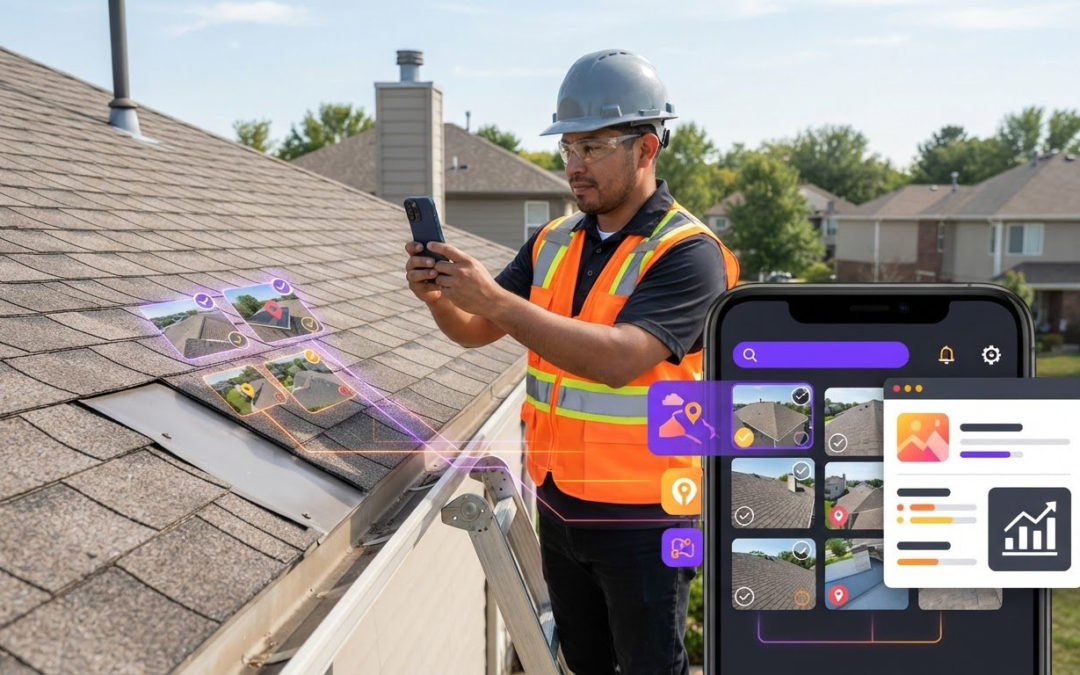
What if your report started taking shape before you left the jobsite? An inspection report generator app can organize field photos and notes as you capture them, instead of leaving you to sort everything out later.
That matters when photos pile up, details lose their context, and manual report assembly delays delivery. You need clear, consistent reports and a workflow that still works in the field. The right app connects evidence capture, labeling, and report creation, so you spend less time rebuilding the inspection from memory.
In this guide, you’ll learn what to look for in an inspection report generator app and how to build a smoother process from onsite documentation to client-ready reports. We’ll cover real-time and voice-to-text photo labeling, customizable templates, report generation, and ways to share assignments and coordinate with a team. PHOTO iD brings these steps together, helping keep every image connected to the inspection it documents.
Key Takeaways
- Judge report quality by how clearly evidence, context, and findings come together, not by the number of features an app lists.
- Choose an inspection report generator app that fits your field-to-delivery workflow, from setting up an assignment to reviewing and sharing the finished report.
- Define the evidence each inspection requires before arrival to make documentation more consistent and reduce gaps.
- Compare tools based on practical needs such as capture, report output, team coordination, and integrations.
- PHOTO iD’s field documentation tools support a repeatable reporting process for independent contractors and teams.
What Is an Inspection Report Generator App, and What Should It Produce?
An inspection report generator app connects field documentation to a finished, shareable report. Instead of treating photos, notes, and forms as separate tasks, it gives them a common structure so evidence can be organized and assembled for review. A general report generator transforms selected information into a formatted output. For inspection work, the value is connecting that output to evidence gathered onsite.
An inspection report generator app turns field inputs, such as labeled images, observations, and supporting files, into an organized report that helps readers understand what was documented and why it matters. The app can arrange information in a template and produce the report, but it does not independently verify or interpret every finding. The inspector remains responsible for documenting observations accurately and providing the necessary context.
A useful report does more than collect evidence. It helps a client, colleague, or decision-maker find relevant details without searching a camera roll or an unstructured block of notes. Clear organization makes documentation easier to review, discuss, and share while keeping each image connected to the observation it supports.
What information belongs in an inspection report?
Include the information a reader needs to understand the inspection and its findings. Depending on the task, that may include labeled images, written observations, checklist responses, and supporting documents. A photo of a damaged surface, for example, is more informative when its label or nearby note identifies the area and describes what the image shows. Context turns a picture into useful evidence.
Consistent sections make that evidence easier to scan. A report might group documentation by area, system, or inspection task, with headings that help readers locate specific findings. The right structure depends on the work: a property walkthrough and an equipment review may require different fields, evidence, and terminology. Build the report around the inspection’s purpose rather than forcing every job into identical content.
How does a report generator differ from a photo folder?
A photo folder stores images, but it does not necessarily explain what they show, how they relate to one another, or where they belong in a report. Without labels and grouping, a reviewer may have to guess which room, component, or observation a photo documents. An inspection workflow connects images to meaningful descriptions and organizes them into report-ready sections.
Templates provide a repeatable starting point. They can establish sections and prompt the inspector to capture relevant information, while leaving room for job-specific observations. Think of a template as a guide, not a script: it supports consistency without dictating what the inspector must find. Some tools organize and format submitted information, but do not assume every app identifies defects or interprets findings automatically. The finished report should make evidence clear, preserve its context, and present it in an output that’s ready to share.
How Does an Inspection Report Generator App Turn Fieldwork Into a Report?
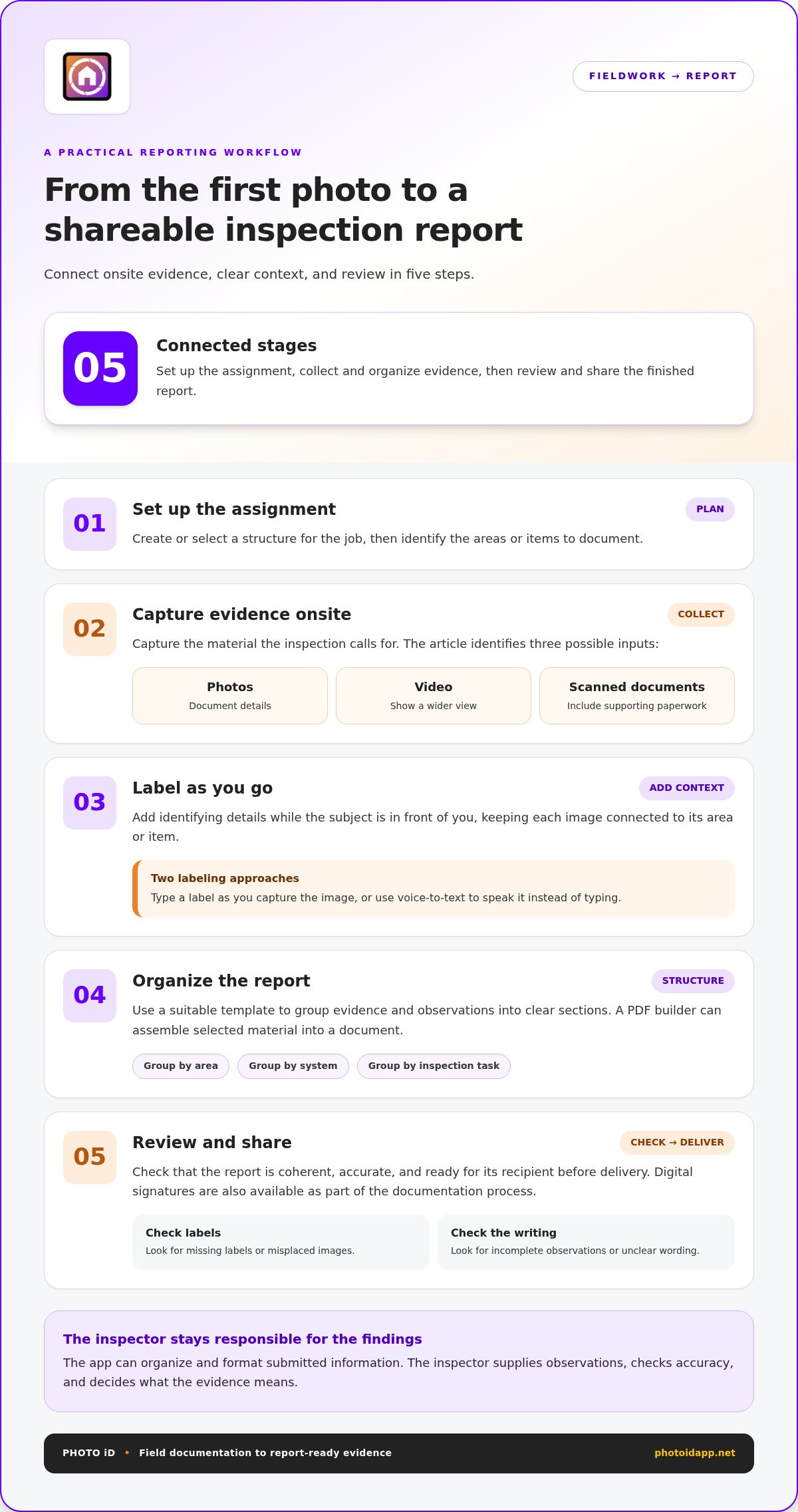
A clear reporting workflow begins before the first image is taken and continues until the finished documentation reaches its intended audience. An inspection report generator app connects those steps: set up the assignment, capture and label evidence, organize it with a suitable template, assemble the report, review it, then share it. The software can streamline organization and formatting. The inspector still supplies the observations, checks accuracy, and decides what the evidence means.
Follow a practical sequence:
- Set up the assignment. Create or select a structure for the job, then identify the areas or items to document.
- Capture evidence onsite. Take photos, record video, or scan relevant documents as the inspection calls for.
- Label as you go. Add identifying details while the subject is in front of you, rather than reconstructing context later.
- Organize the report. Use a template to group evidence and observations into clear sections.
- Review and share. Check that the report is coherent, accurate, and ready for its recipient before delivery.
Capture and label evidence while you inspect
Real-time photo labeling means adding identifying information to an image as you capture it, so the photo stays connected to its subject or inspection area. For example, a label can distinguish one component from another in a series of similar-looking images. Voice-to-text labeling lets you speak a label instead of typing it, helping you keep documentation moving when hands-on work demands your attention.
Photos aren’t the only useful inputs. Video can show a condition across a wider view, while scanned documents can bring supporting paperwork into the assignment. Choose the evidence type that helps explain the observation. The app can help collect and arrange these inputs, but you decide what to capture, what each item shows, and whether the label accurately describes it.
Assemble, review, and share the finished report
Once evidence is collected, a customizable template gives it a report structure suited to the task. A PDF builder can assemble selected material into a document for review and sharing. Before delivery, scan the report for missing labels, misplaced images, incomplete observations, and unclear wording. Digital signatures are also available as part of the documentation process.
Delivery can fit the assignment and the people involved. Shareable assignment links help coordinate access to an assignment, while gallery web links provide a way to share photo documentation. Choose the appropriate option, check that the report presents evidence in context, and share it with the intended recipient. PHOTO iD connects these field-to-report steps through photo labeling, templates, and report generation. Details about the PHOTO iD inspection reporting app show how the workflow brings those tasks together.
How to Compare Inspection Report Generator Apps Without Choosing by Feature Count
A long feature list doesn’t tell you whether an app will make field reporting easier. Compare tools against the work your team actually does: capture evidence, label it, organize it, produce a usable report, and share it with the right people. The right fit supports that flow without adding duplicate entry or extra cleanup.
Use these criteria to focus the comparison on practical outcomes:
| Criterion | Field problem it should solve |
|---|---|
| Evidence capture | Photos, video, or documents end up scattered across devices or apps. |
| Labeling | Images lose their subject, location, or inspection context. |
| Templates | Reports vary in structure, or important fields get overlooked. |
| Report output | Evidence still needs extensive manual formatting before it can be shared. |
| Collaboration | Teams struggle to see assignment progress or coordinate documentation. |
| Integrations | Staff have to re-enter information between reporting and existing work tools. |
Match reporting features to your inspection workflow
Start with the way you work. For solo inspections, prioritize dependable capture, quick labeling, templates that fit your reports, and straightforward report creation. For team workflows, examine how collaboration works in practice: can people see assignment information, coordinate updates, and communicate about the work through team chat? For remote work, consider whether remote capture and shareable assignment links fit how evidence is gathered and handed off.
Then test the workflow, not just the feature. Run a representative assignment from setup through report delivery. Notice where you switch tools, repeat information, or pause to reorganize images. A useful inspection report generator app should remove friction from the steps you already perform. If it creates a new process that takes more effort than your current one, extra capabilities may not be useful to your workflow.
Check access, security, and integration needs
Compare phone, tablet, and desktop access against your team’s actual working habits. Field staff may capture evidence on a phone, while office staff review reports on a larger screen. Check that the same assignment remains understandable across those stages, rather than judging the app by a single-device demo.
List the work tools that need to connect with reporting, then assess relevant integrations and API access against that list. Don’t assume a long integration catalog matters if it doesn’t cover your workflow. Include multifactor authentication (MFA) in your security comparison, and review how access works for the people who handle assignments. PHOTO iD includes MFA and API access, along with mobile and web photo-management capabilities.
Make the decision using a short, real-world trial: capture a sample assignment, generate its report, review it on the devices your team uses, and share it through the intended workflow. Compare clarity, consistency, and effort. Choose the tool that helps your team move from evidence to a reviewable report with fewer unnecessary steps, not simply the one with the longest feature list.
Build a Repeatable Inspection Reporting Workflow From First Photo to Delivery
A dependable report starts before you reach the site. Define what the assignment requires, capture evidence with its context intact, then review and share the finished documentation. This repeatable process helps reduce the sorting and reconstruction that can turn a field visit into extra admin. Use the same core steps for each job, adapting the template and evidence checklist to the task.
Prepare the assignment before arriving onsite
Choose a suitable inspection template and tailor its sections to the work. Decide which areas, components, or conditions need documentation, and note the photos, observations, and supporting documents the report should include. A focused plan helps you collect relevant evidence without treating every inspection as identical.
Set up the assignment details so the work is easy to identify and organize. For team jobs, share assignment links and use collaboration tools to coordinate responsibilities. Clarify who is documenting each area and how findings will be grouped. That simple setup helps reduce duplicate capture and makes handoffs easier to follow.
Capture, check, and hand off the report
Onsite, document findings as they happen. Take the relevant photo or video, add a clear label, and record an observation while the context is fresh. Use voice-to-text labeling when speaking a description is more practical than typing. If the inspection requires supporting paperwork, scan it into the assignment so it stays connected to the evidence. Before leaving, check that each key finding has enough context for someone else to understand it.
After the visit, review labels and supporting documents before assembling the report. Look for missing sections, unclear descriptions, images grouped under the wrong area, or evidence that needs a brief explanation. Correcting these details before delivery is easier than asking a teammate or recipient to interpret an incomplete handoff.
- Build the report. Arrange the reviewed material using the selected template and PDF builder.
- Complete the sign-off. Use the digital signature capability where it fits the workflow.
- Share with purpose. Send the report or gallery using available links, and state what the recipient should review or do next.
A clear handoff names the documentation being shared and gives the recipient a useful next step, such as reviewing a finding or coordinating follow-up. Keep that message tied to the report so project context doesn’t get lost between field capture and team communication.
PHOTO iD brings photo labeling, templates, collaboration, and report generation into a connected documentation workflow. Its PHOTO iD reporting tools support these steps from field capture through sharing.
Use PHOTO iD to Generate Inspection Reports From Organized Field Photos
PHOTO iD connects field capture, photo organization, and report creation in one mobile and web workflow. For professionals looking for an inspection report generator app, that connection matters: evidence can be labeled as it’s collected, grouped for the assignment, and assembled into a report without first sorting through a camera roll. The inspector supplies accurate observations and reviews the final documentation, while the tools carry the work from onsite evidence to a shareable output.
Capture, catalog, and report with PHOTO iD
Think Snap, Speak & Send. Capture a photo or video, add a label in real time, then organize the evidence for reporting. Voice-to-text labeling lets you speak descriptions instead of typing them. That can keep documentation moving during a busy inspection and preserve context while the subject is in view. In-camera tools such as a compass and roof-pitch gauge also support field documentation where relevant.
PHOTO iD supports unlimited photo and video capture, unlimited cloud storage, and unlimited photo reports. Remote capture and document scanning bring additional evidence into the workflow. Once images and supporting material are organized, the PDF builder helps assemble the report, and digital signatures can be used where the process calls for them. The app helps structure and produce documentation; it doesn’t replace your judgment about what a finding means or whether the evidence accurately represents it.
Templates bring consistency without requiring every inspection to look the same. Set up a structure that reflects the assignment, then label and group images so readers can follow the documentation. PHOTO iD reports 100K+ downloads, 1M+ property inspections performed, and 20M+ images captured. The company also reports 30 to 60 minutes saved per job-site task. That figure is a reported range, not a guaranteed time saving for every user or assignment.
Start with a workflow that fits your team
Independent contractors can use the capture-to-report process to keep field evidence and deliverables connected. Teams can build on that workflow with real-time collaboration, team chat, and customizable inspection templates. Shareable assignment links support coordination, while remote capture can bring documentation into an assignment when work isn’t being recorded onsite by the primary inspector.
Start by choosing a template that reflects the inspection, then capture, label, review, and assemble the evidence before sharing the finished report. Adjust the process to fit your team’s responsibilities and handoff needs. That’s how a flexible app becomes a repeatable reporting routine without forcing every job into a rigid script.
Start a 14-day trial of PRO features and explore how PHOTO iD can support your inspection reporting workflow.
Make Your Next Report Easier to Deliver
Your next inspection is a chance to improve more than the finished document. Use it to build a repeatable habit: capture with purpose, keep evidence connected to its context, and make the handoff clear. Small workflow choices can help prevent the end-of-day scramble to identify photos and rebuild details from memory.
An inspection report generator app should fit the way you work in the field, not force you into a process that slows you down. Start with one assignment. Notice where documentation flows smoothly and where your team still has to switch tools or repeat steps. Then refine your template and handoff until the process feels natural for the work you do.
PHOTO iD offers a 14-day trial of PRO features. The trial gives you a practical way to test a workflow from field documentation through report delivery. The PHOTO iD PRO trial is available online.
Frequently Asked Questions
What is an inspection report generator app?
An inspection report generator app helps field professionals turn job documentation into a report they can review and share. For example, a contractor might group labeled photos and notes by work area, then assemble them into a client-facing document. The app can organize and format those inputs, but the inspector remains responsible for accurate observations and checking the finished report before it’s sent.
Can an inspection report app create a PDF?
Yes. PHOTO iD includes a PDF builder and instant photo report generation, so you can prepare a document from the material collected for an assignment. Before sending it, check that the report includes the intended images, accurate labels, and enough context for the recipient. If sign-off is part of your process, PHOTO iD also includes digital signature capability.
Can clients view an inspection report without downloading an app?
Yes. PHOTO iD offers gallery web links and shareable assignment links, so teams can share documentation through links rather than relying on every recipient to use the same mobile app. It also supports secure client or tenant uploads through a secure link. Choose the link for the task: sharing a photo gallery is different from collecting additional documentation from a client.
Does PHOTO iD work on desktop as well as mobile?
Yes. PHOTO iD includes a mobile app and a web app with the same feature set, and it works across phones, tablets, and desktops. Field staff can document work on a mobile device, while other team members can use the web workflow. For example, a reviewer can access assignment documentation from a desktop instead of relying on a field phone.
Can an inspection report app support remote inspections?
Yes. PHOTO iD supports remote capture for virtual inspections, along with real-time collaboration and shareable assignment links. These tools help a remote participant contribute documentation to an assignment. Set expectations about who is capturing evidence and what each image or video shows. Clear labels and a brief explanation of the capture process help reviewers understand how the documentation relates to the inspection.
How does voice-to-text photo labeling work?
With PHOTO iD, you can speak a label instead of typing it for each image. Its real-time image-labeling camera also labels images as they’re captured. For example, you can dictate a description while documenting a specific area, then review the label later to catch speech-recognition errors or missing details. A quick accuracy check helps keep the photo’s context clear in the final report.
Is inspection photo storage unlimited with PHOTO iD?
PHOTO iD plans include unlimited photo and video capture, unlimited cloud storage, and unlimited photo reports. Assignment limits are separate: Pro-Lite allows five assignments, while Pro and Enterprise allow unlimited assignments. Keep that distinction in mind when estimating how many active jobs you need to manage. The photo and report storage allowances don’t change the assignment limit attached to the plan.
Start your 14-day trial of PHOTO iD PRO features and put an organized inspection reporting workflow into practice.